

GSTAT E-Filing: A Step-by-Step Guide to Filing Appeals before the GST Appellate Tribunal
Scope: Indian GST law, pan-India unless stated otherwise.
GSTAT E-Filing: A Step-by-Step Guide to Filing Appeals before the GST Appellate Tribunal
A quick reference manual to electronically file an appeal before the GST Appellate Tribunal (GSTAT) against orders passed by the first appellate authority or revisional authority, covering the complete filing journey from registration to provisional acknowledgment.
This post shall attempt to guide the taxpayer through the appeal filing process, beginning with the user registration on the GSTAT portal and ending with the appeal e-filing provisional acknowledgment.
LIST OF CONTENTS:
The e-filing process broadly involves the following stages:
Step 1: Registration
Step 2: Entering appeal details on GSTAT portal and adjustment of pre-deposit
This stage involves entering appeal particulars, jurisdictional details, grounds of appeal, and pre-deposit information on the GSTAT portal.
Step 3: Payment of appeal fees
Step 4: Document upload and final e-filing of appeal
Step 1: Registration
- Taxpayers seeking to file appeals on the GSTAT portal must first register on the GSTAT portal by creating a user account.
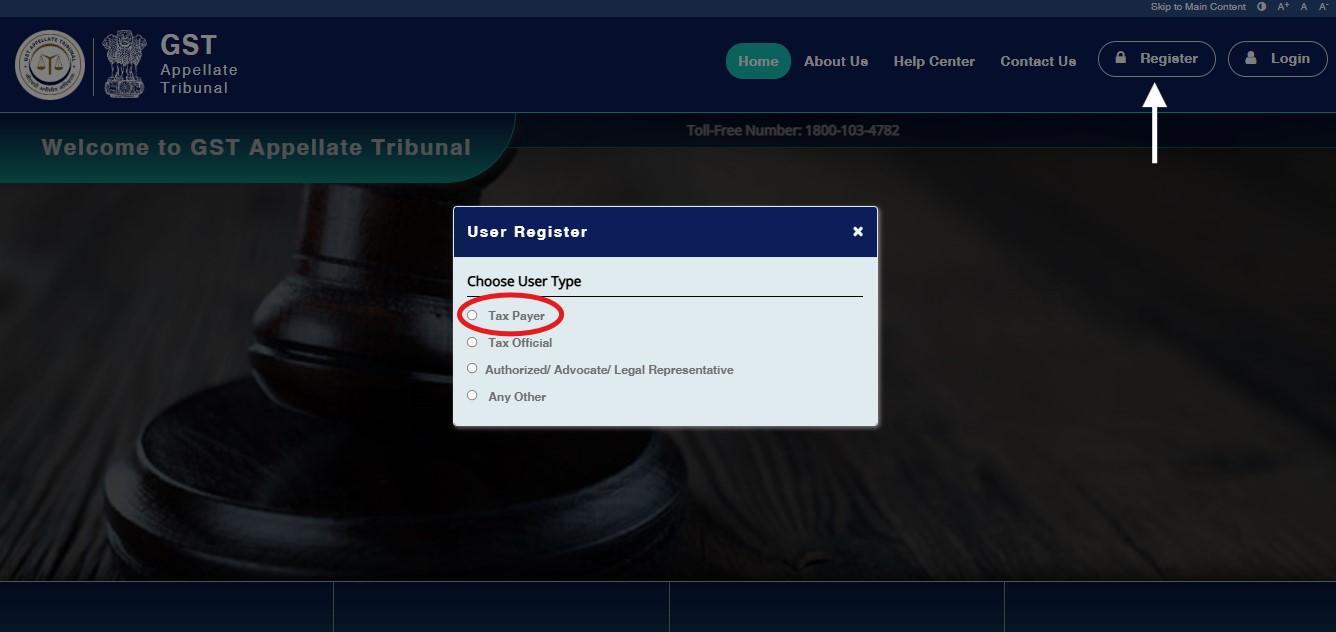
- Visit the GSTAT homepage and click on the “Register” tab in the top right corner.
- In the Choose User Type menu, click on the “Tax Payer” option, which will lead to the e-filing User Registration page
- On the e-filing User Registration page, enter your GSTIN and fill the captcha and click on “Fetch Data”.
- The website will send an OTP to the mobile number already registered with your GST portal. Enter the OTP and the captcha and click on OK. The remaining details would be auto-filled as per your details on the GST portal for the respective GSTIN.
- Validate your GSTIN registered e-mail ID by entering the OTP received on e-mail and entering the captcha.
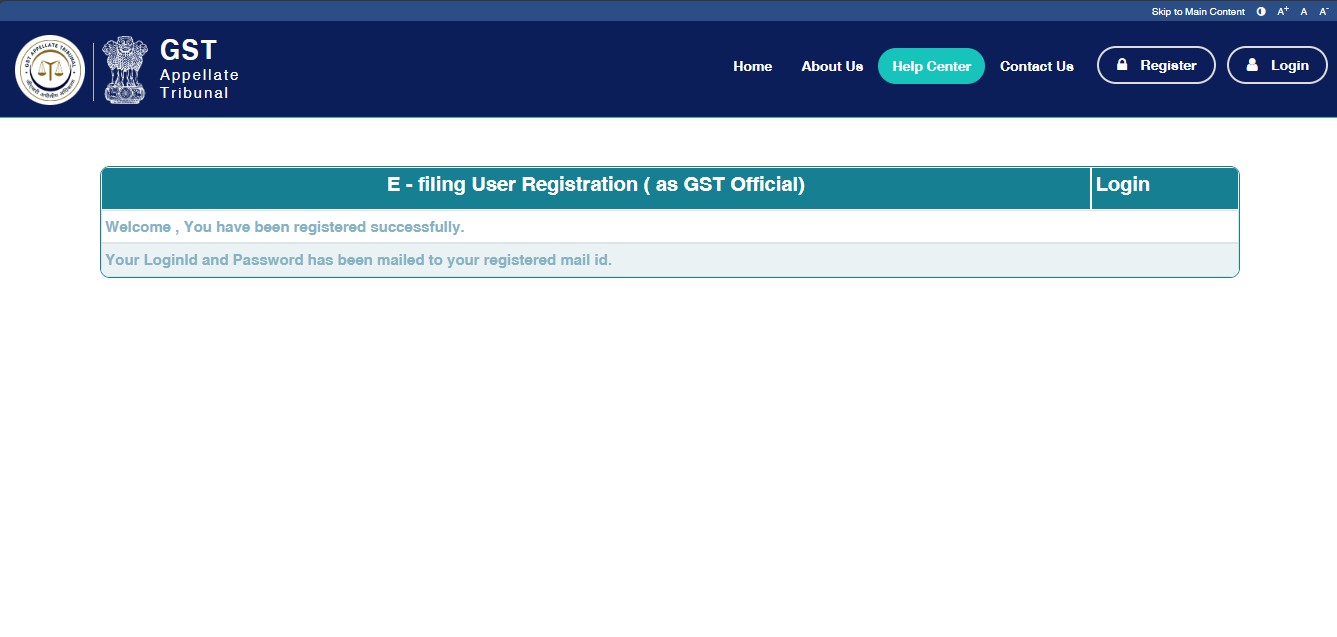
- Your GSTIN shall be your login ID. Once the e-mail ID and mobile number are verified, click on “Submit”. You shall receive your login ID (GSTIN) and password by e-mail and the following page would be shown:
- Proceed to login using the GSTIN and password received over e-mail. At the time of first login, the portal shall ask you to reset your password to a password of your choice. Please enter the password received on e-mail in the Old Password field and enter the password of your choice in the New Password field.
Step 2: Entering appeal details on the GSTAT portal
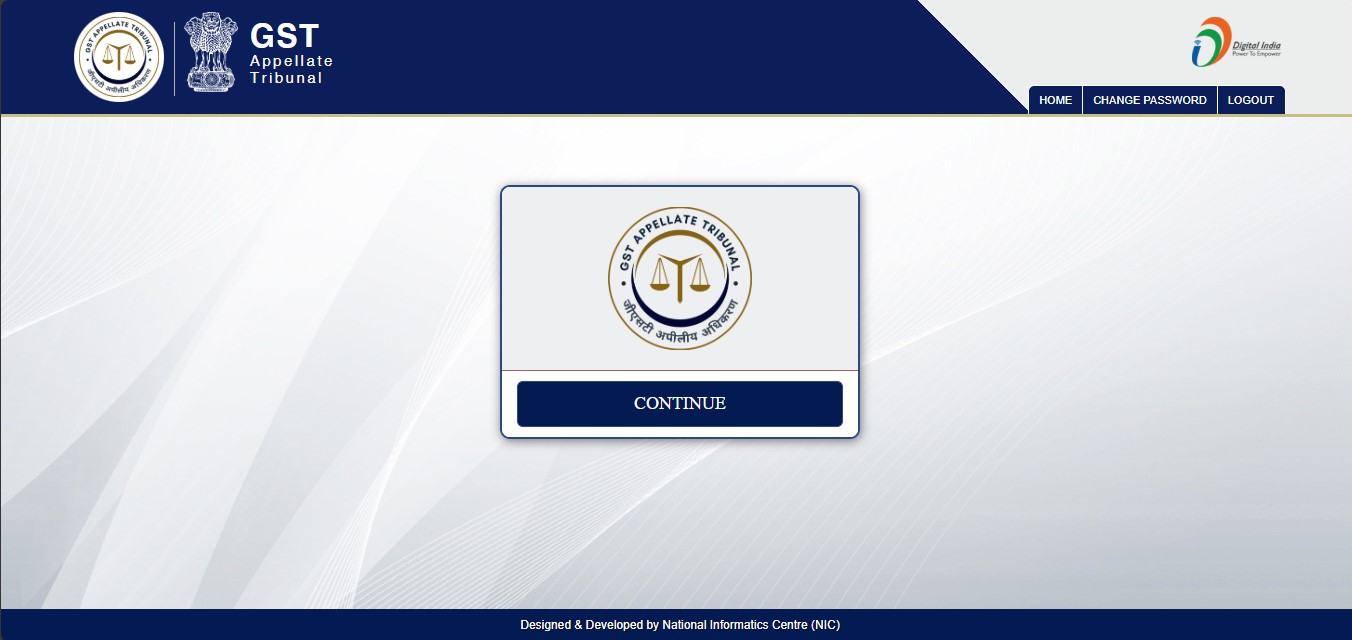
2.1 Login to the GSTAT portal again by clicking on the “Login” button on the top right corner. Enter your GSTIN as the login ID and the new password set by you to reach the following welcome screen. Click on “Continue”
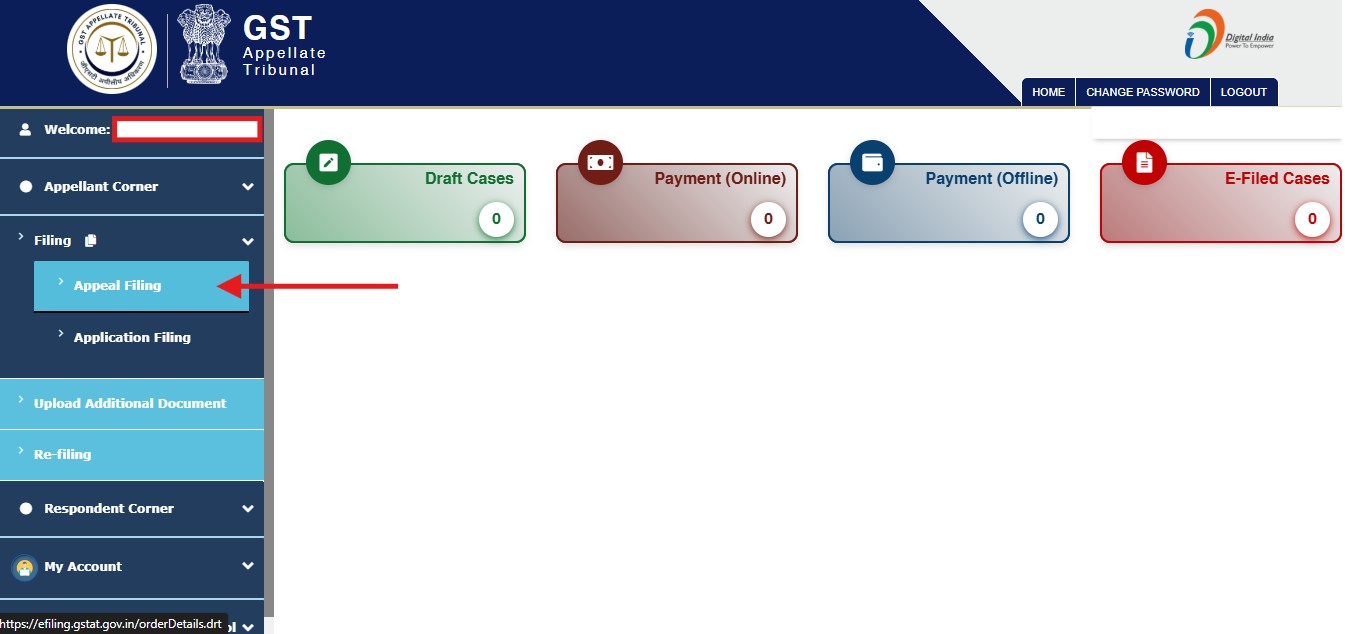
2.2 In the welcome dashboard of the GSTAT portal, open the “Appellant corner” menu on the panel on the left side of the screen. Proceed to click on “Filing” and then “Appeal filing” option in the sub-menu below it.
2.3 In the next page, if the ARN/CRN number of APL-01 or APL-03 (in case of Department’s appeal before first appellate authority) or RVN (in case of revision order) number is available, proceed to select “ARN/CRN available” in the “Select Filing Through” option. If this number is not available, select “ARN/CRN Not Available”. The taxpayer would then be required to manually fill the following basic order details.
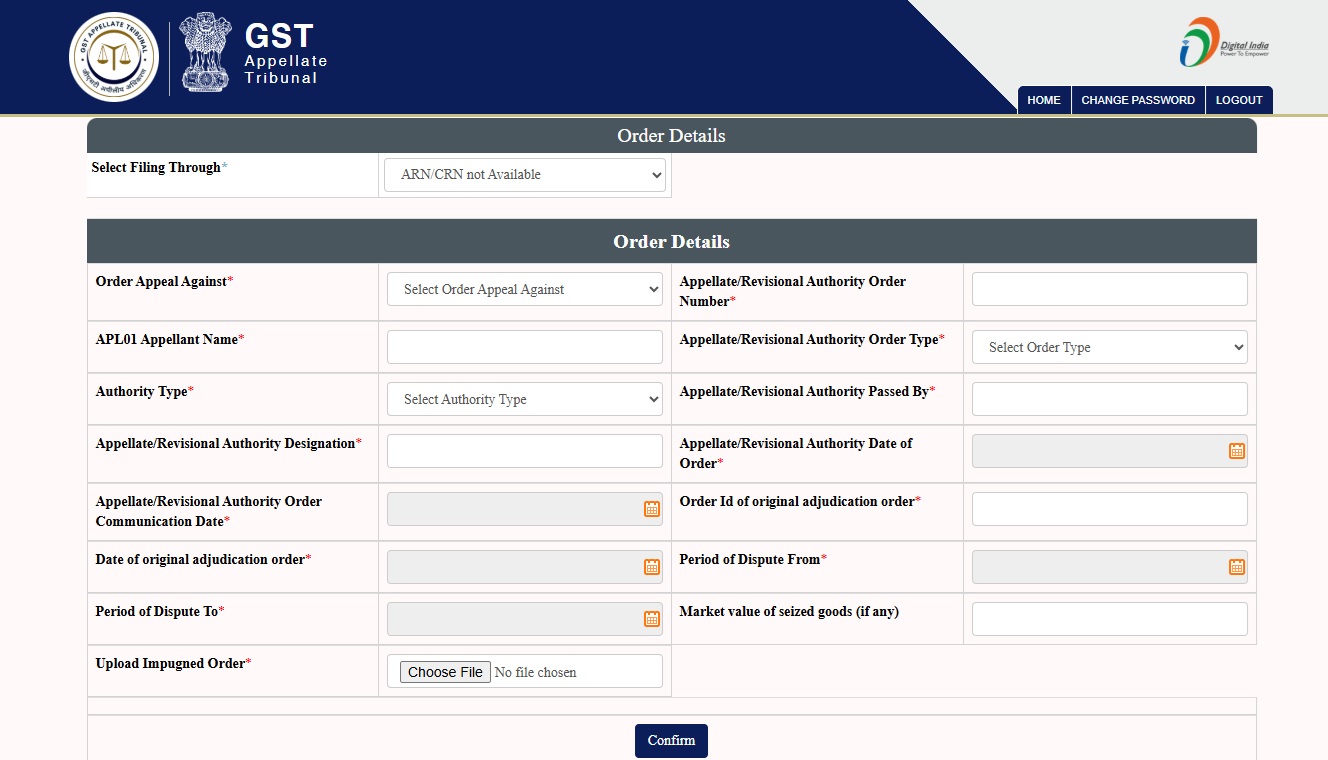
2.4 While filling the details of the “Order Appeal Against” (impugned order), select the correct order type based on whether it is an order passed in APL-04 by the appellate authority or a revision order. The option field also permits selecting APL-02 (Rejected). This is only applicable in case where appeal filed before the first appellate authority is rejected at admission stage itself for reasons provided in APL-02. Similarly, select the applicable “Order Type” (Demand order/Registration order/Refund order/Enforcement order etc.) as well as the “Authority Type” (Appellate or Revisional), from the dropdown menus against the respective fields. In the “Appellate/Revisional Authority Order Number” field, enter the 15 digit order number. Thereafter, upload the order being challenged (impugned order) in PDF format. After submitting the required information, the taxpayer must click on “Confirm”, to proceed with filing of the appeal.
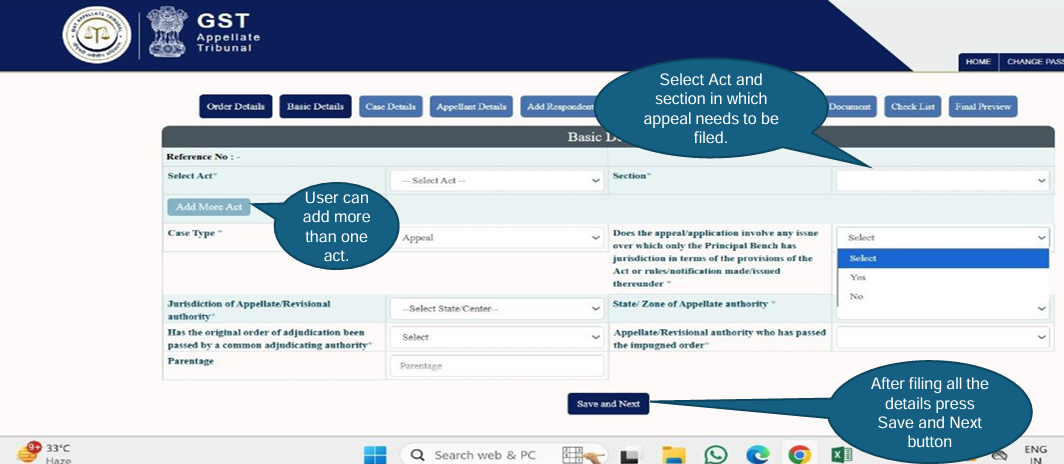
2.5 The next steps of the filing process involve entering the case details. This includes selecting the appropriate statutory Act (CGST & SGST/IGST/Cess) under which the appeal is filed. The Section number would be auto-filled based on the Act selected. More than one Act can also be specified by using the “Add More Act” option. The “Case Type” would be pre-filled based on details entered in the prior pages. In case the appeal involves any issue over which the Principal Bench of the GSTAT has jurisdiction in terms of Section 109 of the CGST Act, 2017 (for e.g. dispute on place of supply), then select “Yes”. For all other issues, “No” must be selected in the respective field. After selecting the jurisdiction of the appellate/revisional authority (Centre or State), select the appropriate Zone or Commissionerate from the dropdown menu and the Designation of the appellate authority from the dropdown menu.
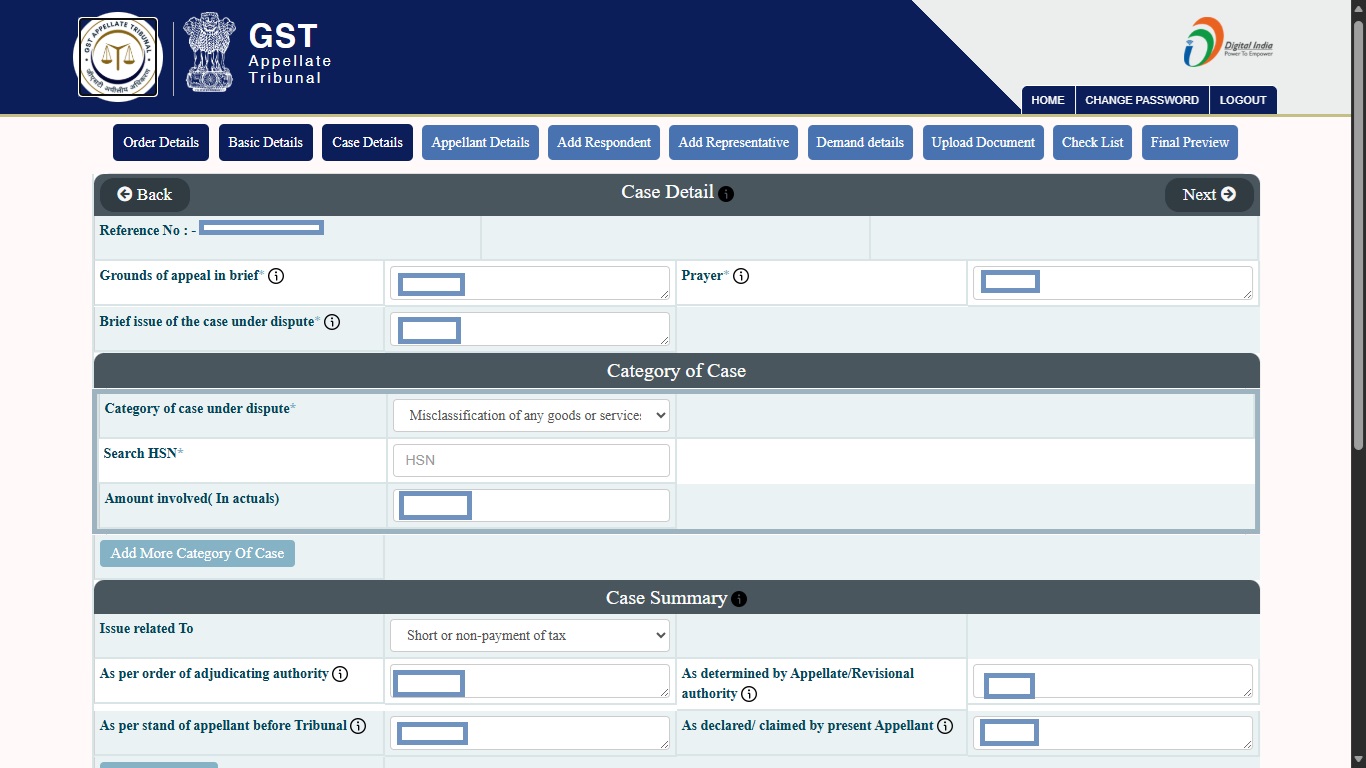
2.6 On the next page, manually fill the grounds of appeal in brief, issue in brief and prayer. The relevant fields have a 2000-character limit. Thereafter, select the category of the case under dispute from the pre-defined categories provided in the dropdown menu. Based on the category selected, the further details required to be entered shall change. For e.g., on selecting the category as “Misclassification of any goods or services”, HSN number would have to be filled and on selecting the category as “Wrong applicability of a notification”, the Notification number would have to be filled. It is possible to select more than one category by using the “Add More Category of Case” option. In the Case Summary section, the broader issue of the case must be selected from the dropdown menu (Short or non-payment of tax/Levy of Penalty/Levy of Interest or Late Fee or Fine/Classification dispute). Once selected, manually enter the stand or views on the issue of the adjudicating authority, the appellate/revisional authority, the appellant and the taxpayer. There is a 2000 character limit to enter these details. In the next sections of the page, details of the appellant taxpayer are to be filled (Constitution of business, statute under which incorporated, address etc.) as well as case history. However, these details are currently optional and not mandatory to be filled to proceed to next stage of filing appeal. Once done, click on Save & Next.
2.7 On the next page, the Appellant Details would be shown as per data filled previously. This is for confirmation purpose and no further details are required to be entered on this page. Click on “Next” after reviewing these details.
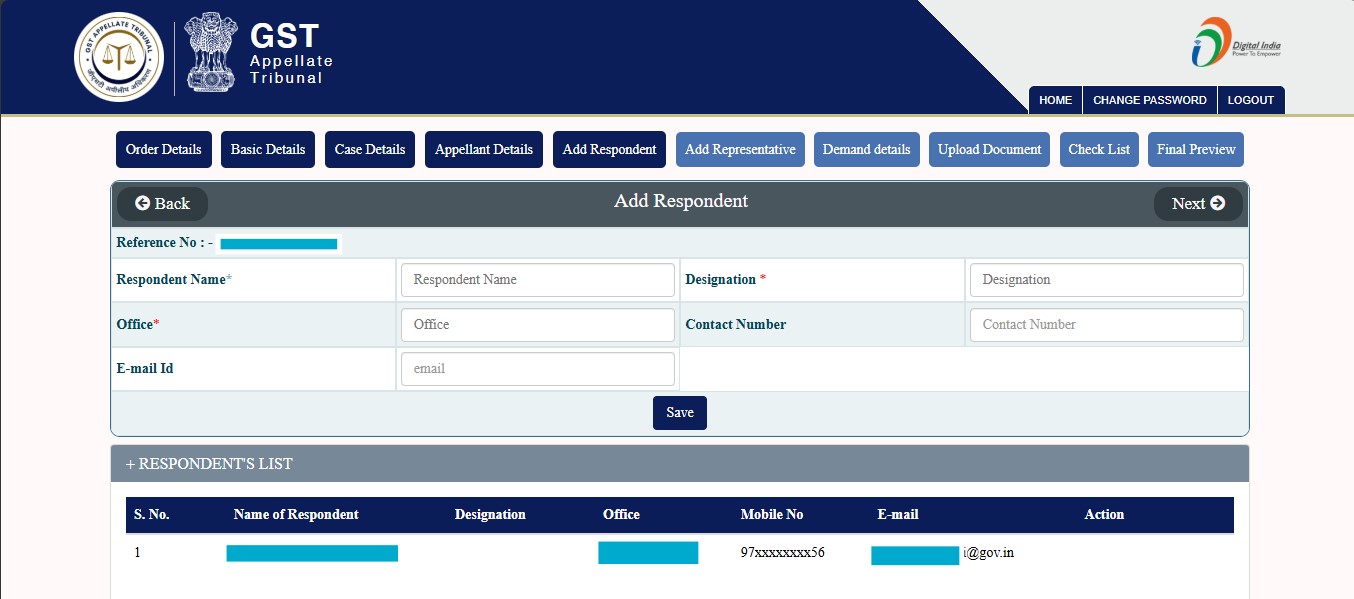
2.8 On the next page, Respondent’s details like name, designation and office are required to be filled. It is not mandatory to fill the Respondent’s mobile number and e-mail ID. However, a reference list of Respondents is provided below on the same page based on the Commissionerate/Zone selected in the earlier pages.
2.9 On the next page, details of the authorized representative before GSTAT are required to be entered. While the name of the Appellant is pre-filled, the representative is required to be selected from the list of authorized representatives which would appear on typing atleast three letters in relevant field. Alternatively, the appellant may choose not to select any authorized representative and proceed with selecting “INPERSON” as well. The authorized representatives are saved on selection and in future appeals, the appellant can refer to the Authorized Representatives List given on the same page. Once selected, click on Save and proceed to the next page.
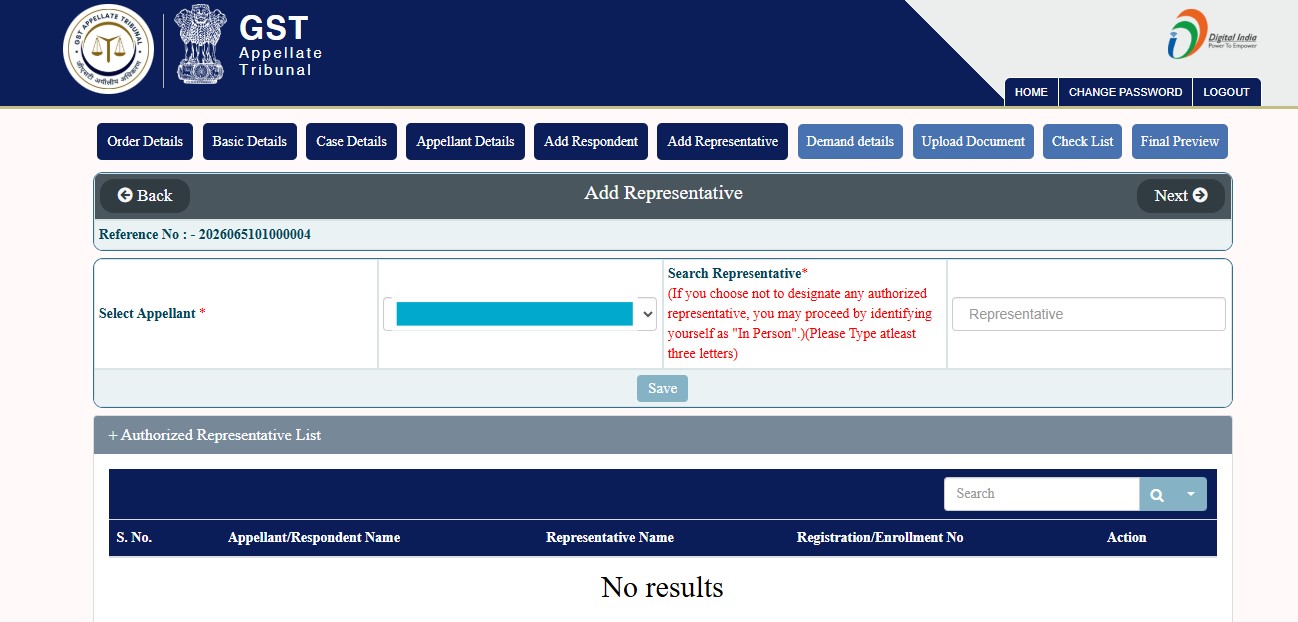
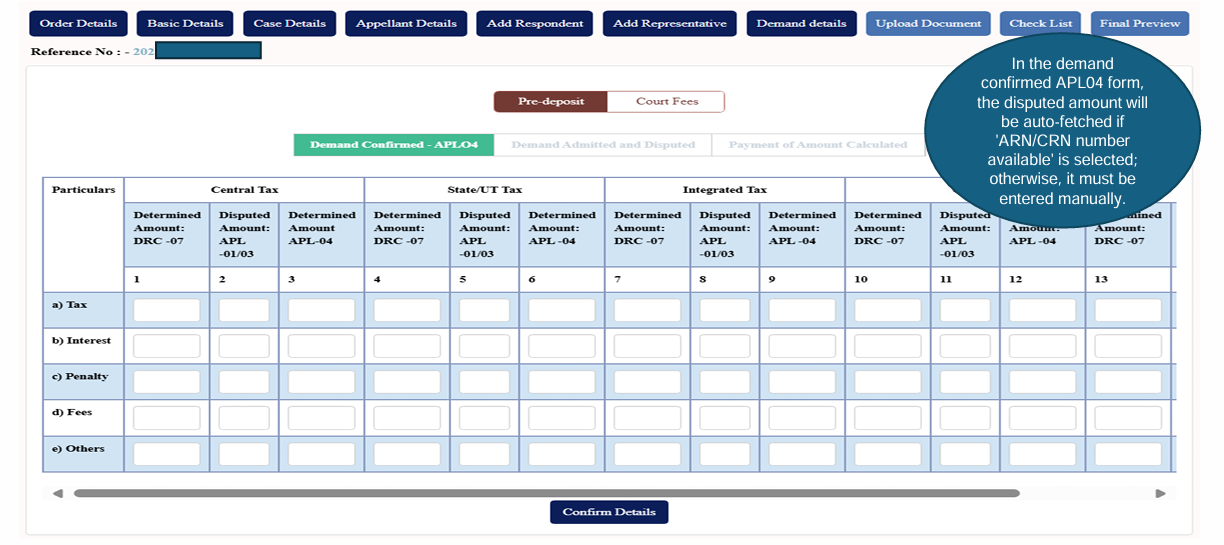
2.10 On the next page, enter the amount of demand raised, disputed and confirmed under the relevant head (CGST/SGST/IGST/Total). These details would be automatically fetched in case the appeal filing is done under “ARN/CRN Available” option (Please refer Step 2.3 above).
2.11 The user also has the option to do self-correction in the values after entering the details.
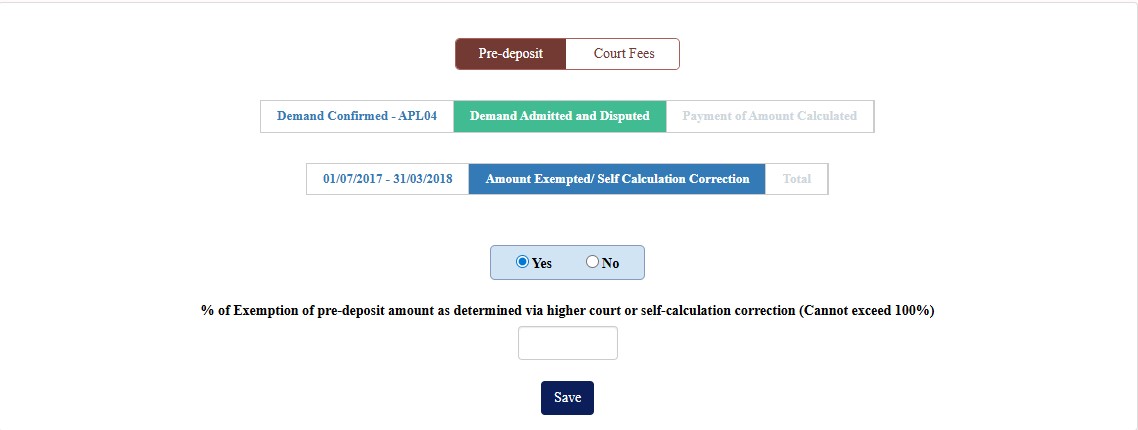
2.12 Once the amount of demand confirmed, disputed and admitted (if any) are confirmed, click on “Save and Next” to proceed with pre-deposit payment.
2.13 It is critical to ensure that the required pre-deposit has been correctly paid and reflected. Where the taxpayer has already made payment of required pre-deposit against the demand, by utilizing the DRC-03A mechanism in their GSTIN portal, a message would be shown as follows: “Your pre-deposit payment is confirmed. Please proceed for appeal fee payment”. If the pre-deposit is pending, the remaining amount of pre-deposit pending would be shown. The taxpayer can proceed to make such payment utilizing the DRC-03A mechanism in their respective GST portal (Please refer Circular No. 224/18/2024-GST dated 11th July 2024 - circular-no-224-2024.pdf). The demand amount, order number and APL-01 details on the GST portal should match with the GSTAT portal for proper adjustment of the pre-deposit.
Step 3: Appeal fees payment
3.1 Once pre-deposit is complete, clicking on “Save and Next” shall lead to the payment options for appeal fees payment (separate from pre-deposit). The appropriate amount of appeal fees would be calculated by the GSTAT portal depending on the amount involved in the appeal and displayed on top of the page. Payment of appeal fees can be done both through online and offline modes. In case of offline payment, select the “Bharatkosh Offline” option on the next page and refer to the user guide provided in the button next to the option for offline payment process.
3.2 Once the payment of appeal fees is made offline as per the Bharatkosh user guide, enter the details like Bharatkosh Reference No., Amount, Payment Date, Bank name, Branch name and State etc. Once the details are filled, click on “Save & Continue” and then click on “Proceed to Final Submit”.
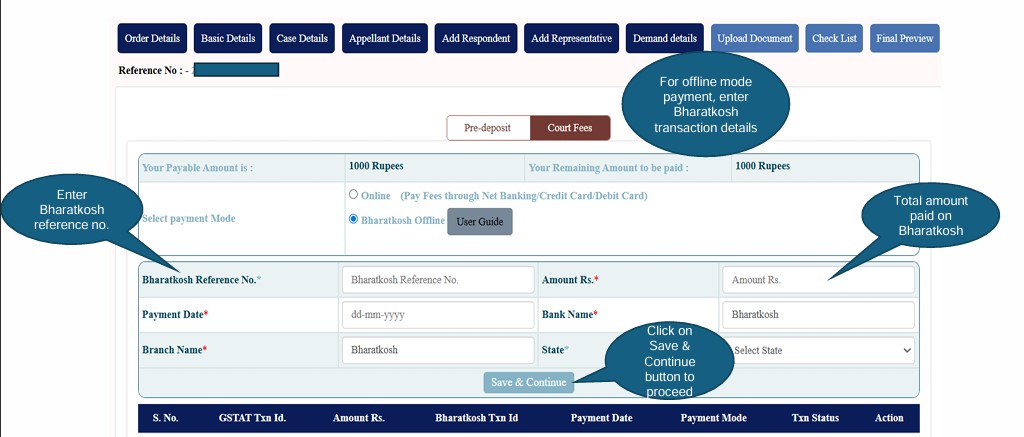
3.3 For online payment of appeal fees, select the “Online” option in payment mode. Clicking on “Continue” and then “Proceed to Pay” will lead to a window containing factual details regarding the payee and the nature of payment. Review all the factual details displayed on the payment window before clicking on “Confirm” to proceed to the Bharatkosh payment gateway. This payment gateway allows payment of appeal filing fees through Netbanking/UPI/Debit Card/Credit Card of multiple Indian banks. Proceed to make the payment using the convenient option.
3.4 Once the online payment is successfully completed, user will be redirected to the GSTAT portal to continue with the appeal filing.
Step 4: Document upload and final filing of appeal (Critical Compliance Stage)
4.1 On the Add Document page after appeal fees payment, upload the appeal documents i.e. appeal, annexure, affidavit etc.
- All documents must be prepared and verified as per the manner prescribed under the Goods and Services Tax Appellate Tribunal (Procedure) Rules, 2025.
- The number of pages in each document is also required to be mentioned before uploading each document.
- The documents are required to be uploaded in the same sequence in which they appear in the “Document Type” dropdown menu.
- The documents in PDF form are required to be bookmarked before uploading.
- Where the taxpayer has self-corrected or self-determined the pre-deposit value as per Step 2.11 above, the taxpayer must upload their calculation sheet along with supporting documents under the document type: “Higher court orders/Self calculation sheet and Any other Document”.
- After uploading all the documents in the sequence prescribed, refer to the uploaded documents list provided on the same page to ensure that all documents are successfully uploaded.
Click on “Next” once all documents are successfully uploaded as per the sequence given in the document type dropdown menu.
4.2 On the next page, please refer to the detailed checklist and select Yes, No or N/A against each question in the checklist, depending on the action taken. If there is any specific comment for clarification, please enter the same under the “Remarks” column. Once the checklist is completed, click on “Save and Next” at the bottom of the page.
4.3 A final preview of the appeal in Form GST APL-05 will be shown with all details as entered in the earlier steps. Please review all the details for any factual errors. Once all details are accurate, verify the appeal by utilizing External or NIC DSC utility or Aadhar based utility. Select document and then click on “Final Submit”.
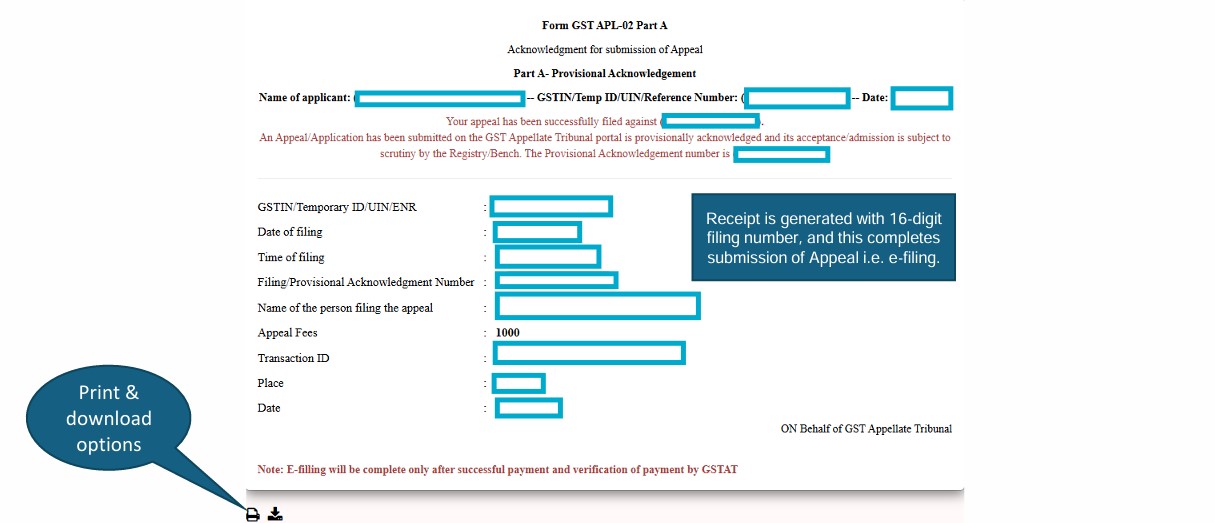
4.4 Upon successful submission, a provisional acknowledgment would be displayed, containing the reference number and a provisional acknowledgment number, indicating successful e-filing of the appeal. However, this shall be subject to verification by the GSTAT. Click on print and download options at the bottom of the page to save this provisional acknowledgment for future reference.
Note:
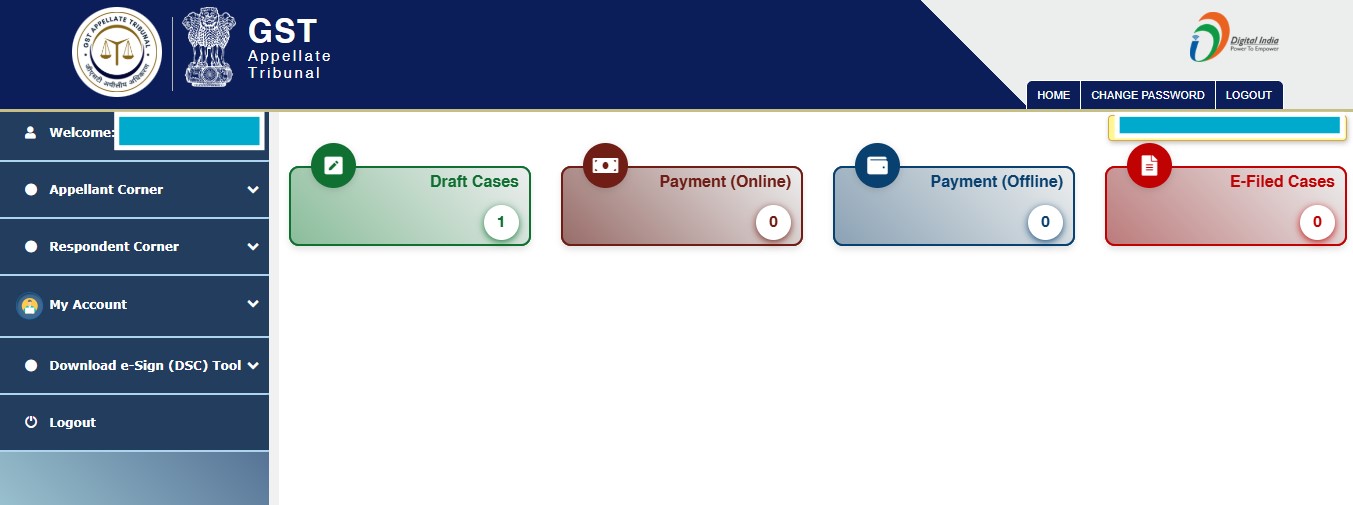
In case the GSTAT login session has timed out anytime during this e-filing process, the user can login to the GSTAT portal again and continue from the last stage with the following steps:
Click on “Draft Cases” after login.
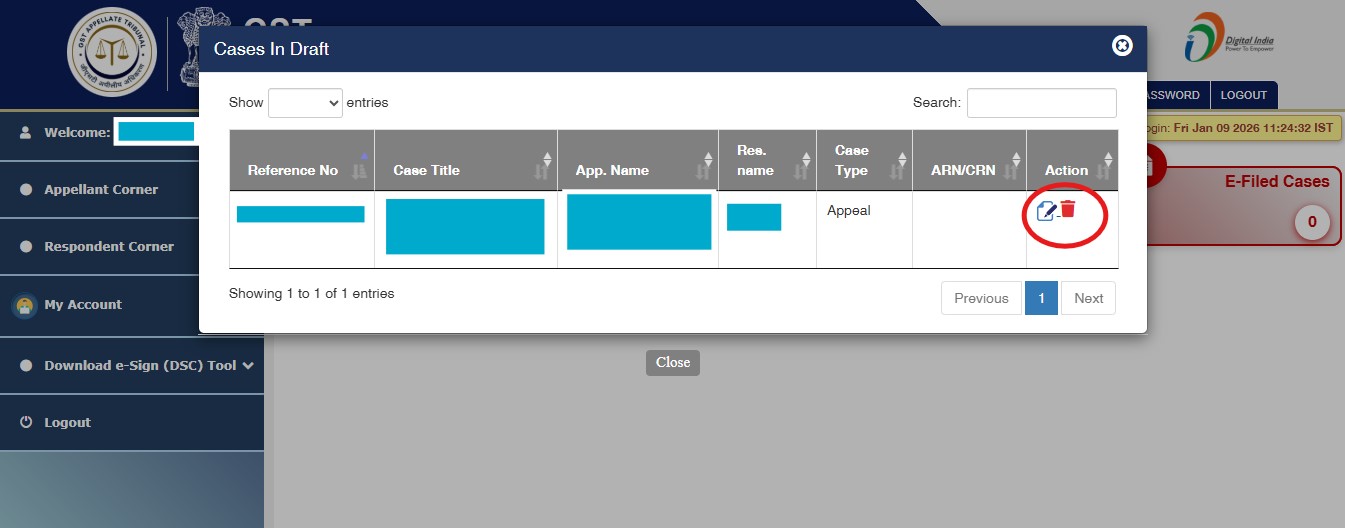
Click on the Edit button (highlighted in red)
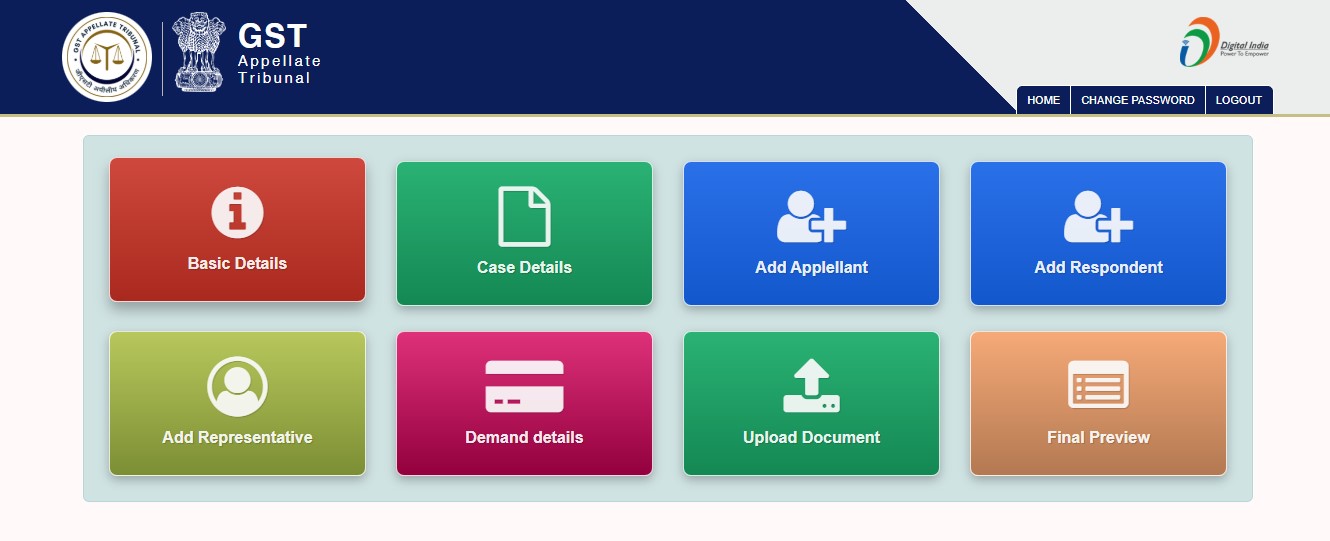
Select the last stage from where the appeal filing process was left off:
Legal Disclaimer
This blog is meant for informational purpose only and does not purport to be advice or opinion, legal or otherwise, whatsoever. The information provided is not intended to create an attorney-client relationship and is not for advertising or soliciting. Lakshmikumaran & Sridharan or its associates are not responsible for any error or omission in this update or for any action taken based on its contents